


Submit a Request
(For SPAC Only)
- Navigate to Veoci
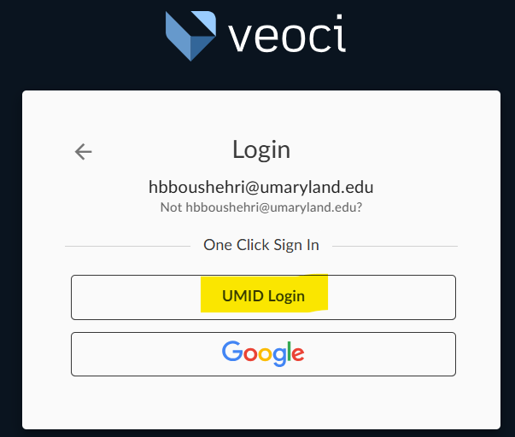
- Note: this link can be bookmarked for easier access. - Log in with your school’s email address, click next, click on “UMID Login” and log in with your UMB credentials.
- Note: if you do not see “UMID Login” you may have typed your email incorrectly.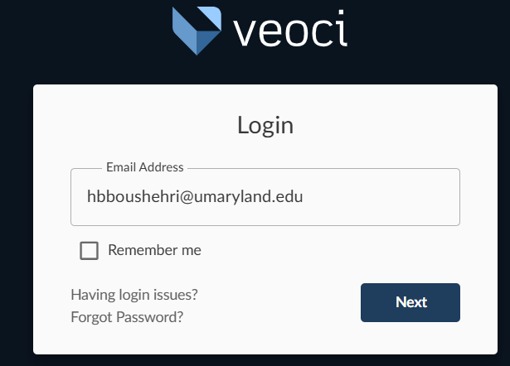
- Once logged in, you are directed to your dashboard. This will list your requests and some additional details at the bottom of the screen.
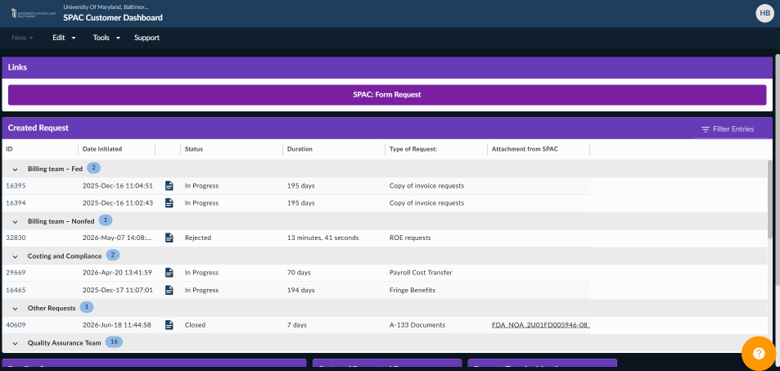
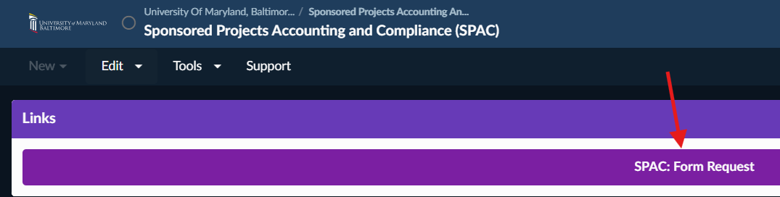
- To submit a request, click the “SPAC: From Request” link near the top of the screen.
- A prompt will open with fillable information. Select the SPAC team most closely related to your request, select the type of request, and sub selection if necessary, and include any number of colleagues to include on this request.
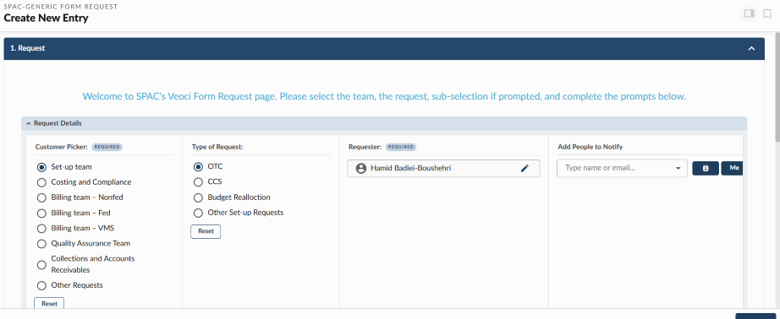
- Scroll down and fill in all fields of information. Include any necessary attachments if requested for prompt action.
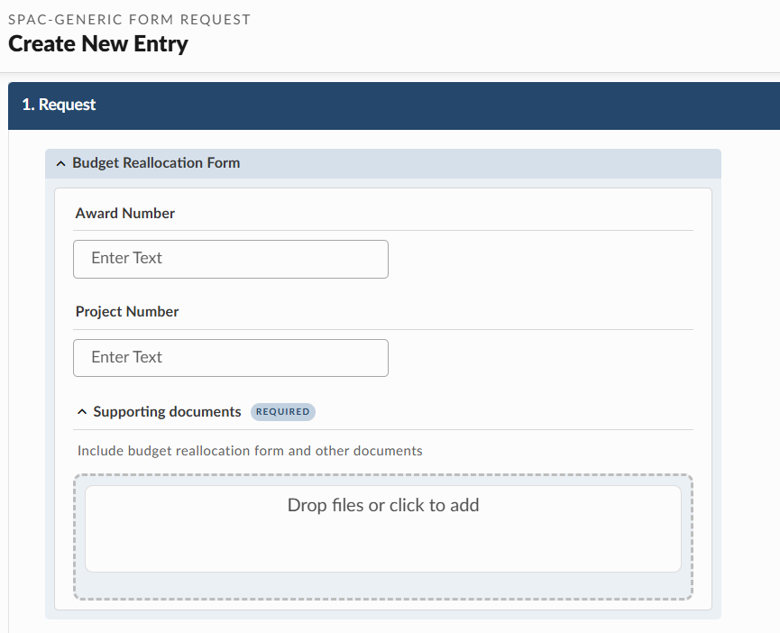
- Click submit so the request will be sent to SPAC to complete your request.
User Dashboard
The user dashboard holds all of your submitted requests. It will also include any pending surveys to be completed and some additional information, such as number of requests by month, and number of tickets by status.
Your tickets are grouped by SPAC team for additional organization. Each ticket can be viewed by hovering over a ticket and clicking. This will cause the ticket to open in a new prompt. A “comments” box will be on the right side to chat directly with SPAC. SPAC members can be tagged by using @ and typing the name. If you are unsure of whom to reference, the team can also be tagged (e.g. @Billing non-fed).