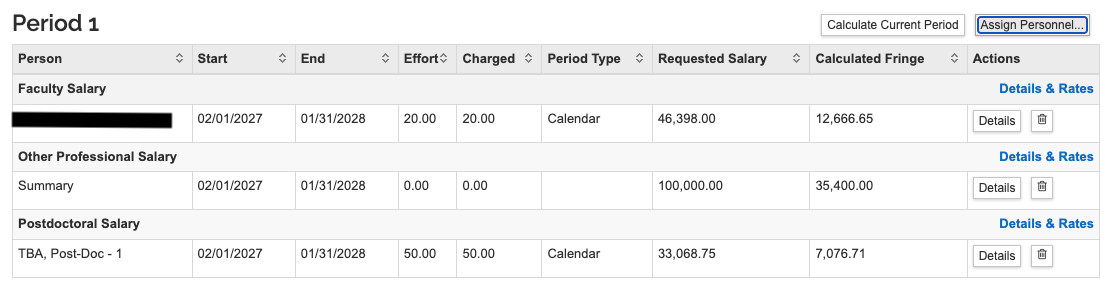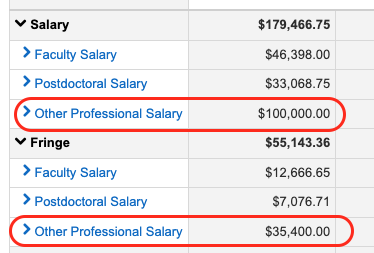


How to enter summary personnel line items
Budget personnel can be entered (1) in detail by person (preferred) or (2) as summary line items.
You cannot combine the two approaches for any one budget category (e.g., faculty salaries). Doing so will cause an error, something like this: "Summary budget cannot be created when individuals have already been budgeted for a given object code name / group / date range combination."
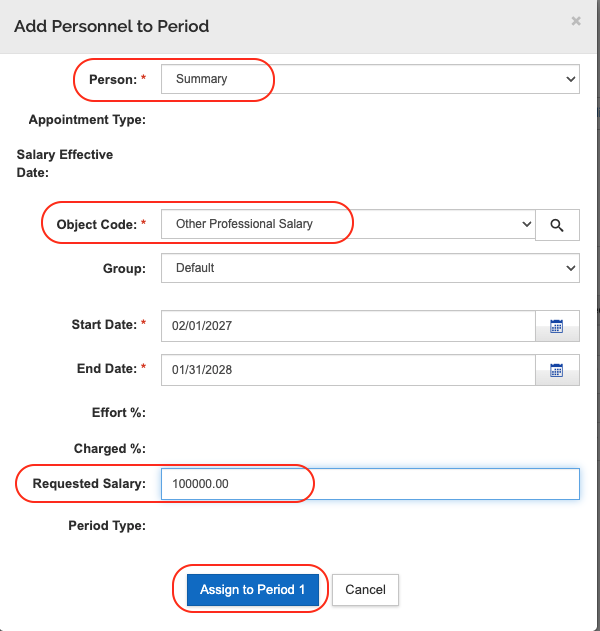
- To enter personnel as a summary line item, in the Budget, go to the “Assign Personnel to Periods” section. Click Assign Personnel.
- Select “Summary” from the Person menu.
- Select the correct Object Code. Select one of the Salary object codes. This selection drives the fringe benefit rate applied to this line item.
- Enter the total Requested Salary. This will be an estimated amount for this budget category.
- Then, click “Assign to Period 1”.
Continue adding more categories as needed.
Note that the budget will not show any effort, FTE, or other detail for these line items. Thus, this approach cannot be used in situations when that detail must be provided. The budget summary will show the categories, fringe benefits, and F&A.