


Unlock the full potential of Blackboard Ultra as our university's Learning Management System (LMS) to enhance course organization, create engaging content, streamline assessments, foster communication and collaboration, and track student progress. Explore the resources and best practices provided here to optimize your use of Blackboard Ultra and create a dynamic and effective online learning environment.

Transitioning from Original to Ultra

The transition to Blackboard Learn Ultra from Blackboard Learn Original is driven by the need to provide a more streamlined, modern, and user-friendly learning management system. The current Blackboard Learn Original has several limitations and challenges, such as outdated navigation, limited mobile responsiveness, and a more complex user interface. Blackboard Learn Ultra addresses these issues with a cleaner, more modern design, improved mobile compatibility, and a simplified workflow. 

The FCTL began migrating courses to the Blackboard Ultra view in 2023. For most students and faculty, the transition has been smooth, and we continue to work on ensuring a seamless experience for everyone involved. Early adopters have reported several benefits, such as enhanced course management, better student engagement, and improved accessibility. 

Key Differences

If you’re transitioning a course from Blackboard Original to Blackboard Ultra for the first time, you may find it helpful to be aware of some of the key differences you might encounter. 

One of the first differences you’ll notice upon entering an Ultra course is the visual layout.  Blackboard Original courses included a single navigation menu, located in the sidebar.  This menu was highly customizable in that you could add or remove items, rename them, and re-order them according to your preference. 
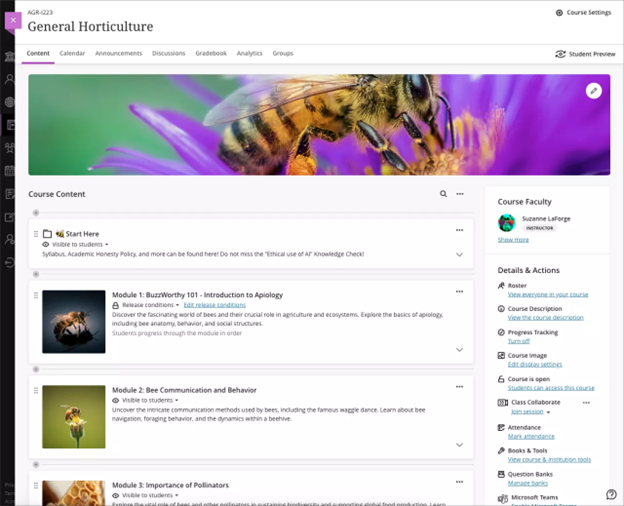
Ultra content page screenshot

Blackboard Ultra courses have a navigation menu across the top of the course and an additional section in the sidebar.  The advantage of this layout is that it makes more efficient use of space than that of Blackboard Original.  It does not, however, support the same degree of customization. 

Navigation menu 

This menu cannot be customized at this time.  Items cannot be added, nor can they be removed, renamed, or reordered.  

  • Content 
  • Calendar 
  • Announcements 
  • Discussions 
  • Gradebook 
  • Messages 
  • Analytics
  • Groups 

Sidebar section 

This section allows very little customization.  The only optional item is the addition of a course schedule (for class meeting times).  Some items can be enabled or disabled, but they will always remain visible.   

  • Course Faculty 
  • Details & Actions 
  • Roster 
  • Progress Tracking (can turn on and off but always visible) 
  • Class Collaborate (can disable or “close” but always visible) 
  • Attendance 
  • Books & Tools 
  • Question Banks (visible in instructor view only) 
  • Course Schedule (this is the only optional item) 

Setting "fixed value” points for a test 

In Blackboard Original, it was possible to override the total points possible for a test or quiz via the Grade Center and assign a fixed value to the test. There were several use cases this feature supported: 

  • Allowing students to only answer some of the test questions for full credit (e.g. answer 3 of the 5 questions). 
  • Making a test worth a specific number of points upon completion, regardless of how many questions are in the test, how many points each question is worth, or how many a student got correct (e.g. pre-tests or knowledge checks).  

In Blackboard Ultra, the total value of a test is calculated exclusively by adding up the point values of each individual question. Possible workarounds, depending on the desired outcome, include:

  • Tweaking the individual point values of questions so they add up to your desired total. In some cases, this might require making one or more questions worth slightly more or slightly less than other questions to reach a whole number or terminating decimal. 
  • Making the value of each test question “0” and adding a final question (e.g. “True or False: I have completed this test”) worth the total value of the test. 
  • Using a weighted category grading schema to make the value of individual quizzes irrelevant and instead designate how much of the total course grade you want these items to collectively be worth. 


Complete/Incomplete Grade Schema

Blackboard Ultra allows you to apply a "Complete/Incomplete" grade schema in the test settings. This schema will not display the points earned for the test in the gradebook, but rather a complete or an incomplete indicator. There are a few important things to keep in mind when using this schema:

  • For a test to automatically award points upon completion, it cannot contain open-ended questions. If it does, you will have to manually score each submission for points to be awarded. 
  • If your test does consist of automatically scored open-ended questions, be aware that it will not automatically award full points upon completion. It will award the number of points the student earned based upon their correct and incorrect responses.
  • If a student does not earn the full possible points due to incorrect responses, their partial score will be recorded to the gradebook and reflected in their total grade for the course. However, it will not be apparent to instructors when this has happened with "Complete/Incomplete" schema. You will only see a "Complete" indicator in the gradebook; you will not be able to see the exact points earned by the student, nor will you be able to open the test and review the correct or incorrect responses of the student. You can only access their response details if you change the schema back to "Points".


Bulk editing point values

Bulk editing the point values of multiple questions at a time is not currently possible in Blackboard Ultra. Point values must be updated, and saved, on one question at a time.


"Forms” vs. “Surveys” 

“Forms” are Blackboard Ultra’s equivalent for Blackboard Original’s “Survey” tool. Both tools share several similarities.  For example, in both tools, you cannot identify “correct” answers, nor can you set up automated feedback.  Both tools allow you to track which students have submitted.  There are, however, two key differences between the two. 

Feature 

Surveys 
Bb Original  

Forms 
Bb Ultra 

Anonymity 

Results are always anonymous. 

 
Instructors have the option to make results anonymous or not. 
 

Grading options 

Can only be ungraded. 

Can be graded (students awarded a specified number of points upon completion) or ungraded.  


Conditional Content Release

Like Blackboard Original, Blackboard Ultra allows instructors to set rules or conditions to control the release of certain content to students.  This was accomplished through “adaptive release” settings in Blackboard Original.  In Blackboard Ultra, these are called “Release conditions”. There are some differences between Original and Ultra in what conditions can be applied.  Key differences are indicated with an asterisk in the criteria column. 

Criteria

Adaptive release 
Bb Original  

Release conditions 
Bb Ultra 

Date 

Can specify a start date and/or end date for content to be viewable. 

 
Can specify a start date and/or end date for content to be viewable. 
 

Membership 

Can restrict access to specific users (members) or groups. 

Can restrict access to specific users (members) or groups. 

Grade 

Can set a grade requirement (score or percent) on a previous item as a release condition. 

Can set a "Performance" requirement on a previous item as a release condition, or select "Attempt submitted".

Attempt* 

As one of the grade criteria options, can release content once a student has made an attempt on an item (e.g. discussion, quiz, assignment). 

This is one of the options available in the "Performance" condition settings.

Review status* 

Can require students to mark a previous item as “reviewed” to release content. Item does not need to be a gradeable activity. 

Bb Ultra does not include a “review status” feature. 


Workarounds: Can create a one-question quiz where students acknowledge they have reviewed the specified material.  Can also set up “forced sequence” indicating that by clicking “next” students are acknowledging they have reviewed the specified content. 

Forced sequence* 

Bb Original does not have a “forced sequence” option. 

Forces students to navigate items in a learning module in sequence (cannot skip ahead). 

Multiple criteria 

Multiple criteria can be applied to a single rule, and multiple rules applied to the item. 

Multiple criteria can be applied to a single rule, and multiple rules applied to the item. 

Rubric visibility

  • Blackboard Original allowed the ability to apply a rubric to an assignment without making the rubric visible to students.
  • Blackboard Ultra does not currently provide this option. Rubrics are always visible to students. This feature has been requested and marked as "Planning to implement", though there is no estimated release date as of yet.

Messages & Email

  • In Blackboard Ultra, when sending a message via Messages, copies are not automatically sent to the recipient's email. The sender must check the box for "Send an email copy to recipients" each time they compose a message if they want a copy to be sent to the recipient's email. This option is not available on the Blackboard mobile app.
  • To view the actual email address of a student, you must open the Roster, select the 3 dots to the right of a student's name, and open their "Member Information".  The student's email address will appear within the "Account Information" dropdown section.

“Forms” are Blackboard Ultra’s equivalent for Blackboard Original’s “Survey” tool. Both tools share several similarities.  For example, in both tools, you cannot identify “correct” answers, nor can you set up automated feedback.  Both tools allow you to track which students have submitted.  There are, however, two key differences between the two. 

Feature 

Surveys 
Bb Original  

Forms 
Bb Ultra 

Anonymity 

Results are always anonymous. 

 
Instructors have the option to make results anonymous or not. 
 

Grading options 

Can only be ungraded. 

Can be graded (students awarded a specified number of points upon completion) or ungraded.  


Like Blackboard Original, Blackboard Ultra allows instructors to set rules or conditions to control the release of certain content to students.  This was accomplished through “adaptive release” settings in Blackboard Original.  In Blackboard Ultra, these are called “Release conditions”. There are some differences between Original and Ultra in what conditions can be applied.  Key differences are indicated with an asterisk in the criteria column. 

Criteria

Adaptive release 
Bb Original  

Release conditions 
Bb Ultra 

Date 

Can specify a start date and/or end date for content to be viewable. 

 
Can specify a start date and/or end date for content to be viewable. 
 

Membership 

Can restrict access to specific users (members) or groups. 

Can restrict access to specific users (members) or groups. 

Grade 

Can set a grade requirement (score or percent) on a previous item as a release condition. 

Can set a "Performance" requirement on a previous item as a release condition, or select "Attempt submitted".

Attempt* 

As one of the grade criteria options, can release content once a student has made an attempt on an item (e.g. discussion, quiz, assignment). 

This is one of the options available in the "Performance" condition settings.

Review status* 

Can require students to mark a previous item as “reviewed” to release content. Item does not need to be a gradeable activity. 

Bb Ultra does not include a “review status” feature. 


Workarounds: Can create a one-question quiz where students acknowledge they have reviewed the specified material.  Can also set up “forced sequence” indicating that by clicking “next” students are acknowledging they have reviewed the specified content. 

Forced sequence* 

Bb Original does not have a “forced sequence” option. 

Forces students to navigate items in a learning module in sequence (cannot skip ahead). 

Multiple criteria 

Multiple criteria can be applied to a single rule, and multiple rules applied to the item. 

Multiple criteria can be applied to a single rule, and multiple rules applied to the item. 


  • Blackboard Original allowed the ability to apply a rubric to an assignment without making the rubric visible to students.
  • Blackboard Ultra does not currently provide this option. Rubrics are always visible to students. This feature has been requested and marked as "Planning to implement", though there is no estimated release date as of yet.

  • In Blackboard Ultra, when sending a message via Messages, copies are not automatically sent to the recipient's email. The sender must check the box for "Send an email copy to recipients" each time they compose a message if they want a copy to be sent to the recipient's email. This option is not available on the Blackboard mobile app.
  • To view the actual email address of a student, you must open the Roster, select the 3 dots to the right of a student's name, and open their "Member Information".  The student's email address will appear within the "Account Information" dropdown section.

Enhanced Features In Ultra

While transitioning between learning platforms can be challenging, it also presents new possibilities for improving teaching, learning, and course management. Blackboard Ultra offers a range of enhanced features that make this transition worthwhile.

Grading

In Blackboard Ultra, instructors can grade discussion posts directly within the discussion forum, streamlining the process and ensuring that students receive timely feedback. The grading interface is user-friendly, allowing instructors to see all posts in context and provide grades and comments efficiently.

Anonymity

To encourage open and honest participation, Blackboard Ultra supports anonymous discussions. This feature allows students to post and reply without revealing their identities, fostering a more inclusive and unbiased discussion environment. Instructors can choose to enable or disable anonymity based on the needs of the course. 

The Gradebook in Blackboard Ultra offers multiple view options, making it easier for instructors to manage and analyze student performance. Instructors can switch between views to see individual students' progress, overall course grades, and specific assignment scores. The Gradebook also includes advanced filtering options, allowing instructors to customize their view based on various criteria. 

Blackboard Ultra provides robust data and analytics tools to help instructors monitor and improve student performance. Instructors can access detailed reports on student activity, engagement, and outcomes. These insights enable data-driven decision-making, allowing instructors to identify at-risk students, adjust course content, and improve overall teaching effectiveness.

Blackboard Ultra seamlessly integrates with third-party tools, including Zoom, to enhance the virtual learning experience. Instructors can schedule, host, and manage Zoom meetings directly within the Blackboard Ultra interface. This integration ensures that virtual classes, office hours, and group meetings are easily accessible and well-organized, providing a cohesive experience for both instructors and students. 

Blackboard Ultra is designed with mobile users in mind. The platform is fully responsive, providing an optimized experience on smartphones and tablets. Students and instructors can access course materials, participate in discussions, and manage their courses from any device, ensuring learning can happen anytime, anywhere.   

Blackboard Learn Ultra provides robust features to accommodate students with diverse needs, ensuring a fair and inclusive learning environment. Here’s how you can set up accommodations and exceptions in Blackboard Learn Ultra: 

Setting Accommodations 

Accommodations in Blackboard Ultra can be set via the roster or the gradebook and will apply to all assessments within the course. These accommodations include: 

  • Due Date Accommodation: Allows additional time for assignments and assessments. 
  • Time Limit Accommodation: Extends the time limit for timed assessments. 

Once an accommodation is set, a purple flag appears next to the student’s name, indicating that they have an active accommodation. 

Setting Exceptions 

Exceptions in Blackboard Ultra are specific to a single assessment and can also be managed via the gradebook. These exceptions include: 

  • Due Date Exception: Allows a different due date for a particular assignment or assessment. 
  • Time Limit Exception: Extends the time limit for a specific timed assessment. 

An icon next to the student’s name in the gradebook will denote an exception set for that assessment. 

Steps to Set Accommodations via the Roster or Gradebook 

  • Via the Roster: 
    1. Navigate to the course roster. 
    2. Select the student for whom you wish to set an accommodation. 
    3. Choose the type of accommodation (due date or time limit) and make the necessary adjustments. 
  • Via the Gradebook: 
    1. Open the gradebook for your course. 
    2. Select the student’s name and access the accommodation settings. 
    3. Adjust the due date or time limit as required. 

By using these features, instructors can ensure that all students have the necessary support to succeed in their courses. For more information, you may access the Blackboard help page titled, Make Accommodations.  

The Blackboard Ultra AI Design Assistant is an innovative tool for instructors, designed to enhance the teaching and learning experience by leveraging advanced AI capabilities. This assistant aims to inspire instructors and enable them to create more engaging course experiences more quickly. The AI Design Assistant ensures that instructors have full control over the AI's suggestions, which need to be explicitly accepted before they are integrated into a course. 

Key Features and Uses

  • Finding Module Images from Unsplash: Easily locate and incorporate high-quality images into course modules to enhance visual appeal. 
  • Generating Rubrics: Automatically create detailed and customized rubrics to streamline the grading process and ensure consistency. 
  • Generating Test Questions: Develop test questions based on existing course content, ensuring alignment with learning objectives and saving time on assessment creation. 
  • Generating Modules Based on Learning Objectives: Create comprehensive course modules that align with specified learning objectives, helping to maintain a structured and goal-oriented curriculum. 

Resources & Support

At the University of Maryland, Baltimore, each of the seven schools has its own dedicated technology support teams, ensuring that faculty, staff, and students receive tailored assistance specific to their academic disciplines. These school-based technology support teams are well-versed in the unique technological needs of their respective schools and are readily available to provide guidance, troubleshoot issues, and offer solutions.

School of Law

The Carey School of Law's Technology Services team seamlessly integrates technology into the legal education experience, offering comprehensive support and solutions to enhance learning, research, and collaboration within the legal community.

School of Dentistry

The School of Dentistry's Educational Technology Center Services provides a state-of-the-art environment for dental students and faculty to explore the intersection of technology and dentistry. From advanced simulation labs to digital imaging resources, they equip aspiring dentists with the technological prowess needed for success in the modern dental landscape.

School of Medicine

The Office of Medical Education's technical support team, which includes the Instructional Technology Group and Curriculum Support Services, stands at the forefront of medical education technology, delivering innovative solutions that enrich the learning journey of medical students. From virtual anatomy platforms to interactive learning modules, they nurture the next generation of healthcare professionals with technology-driven educational experiences.

School of Nursing

The School of Nursing's Office of Learning Technology embraces the power of learning technology to foster excellence in nursing education. They provide a digital ecosystem where nursing students can engage with immersive simulations, e-learning modules, and advanced learning management systems, preparing them for the dynamic healthcare field.

School of Pharmacy

The School of Pharmacy's Computer and Network Services team ensures that pharmacy students and faculty have seamless access to the technological infrastructure they need to drive pharmaceutical innovation. From state-of-the-art research labs to robust network security, they lay the foundation for breakthrough discoveries and secure knowledge sharing.

School of Social Work

The School of Social Work recognizes the role technology plays in empowering social work practitioners and researchers. Their IDEA Team unit provides expertise in using technology for social impact, equipping students and faculty with the digital tools necessary to advocate for social justice and make a meaningful difference in communities. Please visit the IDEA Team Knowledgebase for all resources, workshops, training and support for Blackboard, Concourse syllabus and other academic services, as well as for designing online and hybrid courses.

In addition to the school-based teams, there are two centralized support services available to the entire university community. 

  • The Center for Information Technology Services (CITS) focuses on providing comprehensive technology support, managing infrastructure, and delivering enterprise-wide services. Whether it's network connectivity, software support, or hardware troubleshooting, CITS is there to help.
     
  • The Faculty Center for Teaching and Learning (FCTL) specializes in supporting pedagogy and instructional practices. FCTL offers expertise and resources to faculty, staff, and students who seek to enhance their teaching and learning experiences. From integrating technology into the classroom to exploring innovative teaching methodologies, FCTL provides guidance, training, and support to foster effective teaching practices across the university

Tutorials 

Compiled here, you can find a selection of tutorial videos designed to help you navigate and make the most of Blackboard Ultra. These videos, provided by Anthology, cover a variety of essential tasks to enhance your teaching and learning experience. Whether you're new to Blackboard Ultra or looking to refine your skills, these step-by-step guides will provide the support you need. 

Resources

How do I set up weighted grades in Blackboard Ultra? 

  1. Edit the Overall Grade column and select "Weighted" under Calculation Type. 
  2. Choose whether to weigh items proportionally (based on point values) or equally (as percentages). 
  3. Expand categories to manage individual items: unlink, exclude, or adjust weightings as needed. 
  4. Set the display type for the overall grade (letter, percentage, points, etc.). 

Guide: Grade Columns 

How do I perform a grade override in Blackboard Ultra? 

You can override a grade by manually entering a different grade to replace the calculated score. When viewing an assignment submission, in the top right corner of the grading window, select the three-dot menu and choose Override Final Grade. 

Guide: Override Grades 

What are release conditions, and how do I set them up? 

Release conditions control when content is available to students: 

  1. Select the content item or module, then choose "Release Conditions." 
  2. Set conditions like date, grade, or completion requirements. 
  3. Save, and the content will remain hidden until the conditions are met. 

Guide: Content Release Conditions 

How can I set up Zoom meetings within Blackboard Ultra? 

  1. On the Course Content page, select the plus button where you want to add content. 
  2. Choose "Content Market" from the menu. 
  3. Find "Zoom Meeting" and click the plus sign to add it. 
  4. Import your Zoom meetings into the course. 

Guide: Add Content from External Sources