

Creating accessible digital content ensures that all members of our community — including individuals with disabilities — can fully engage with the information, resources, and experiences we provide. This site provides guidance for making web content, documents, emails, social media, events and online meetings, and courses and learning platforms accessible to all users.

Accessibility Foundations

The following points are essential to building a foundational understanding of digital accessibility.
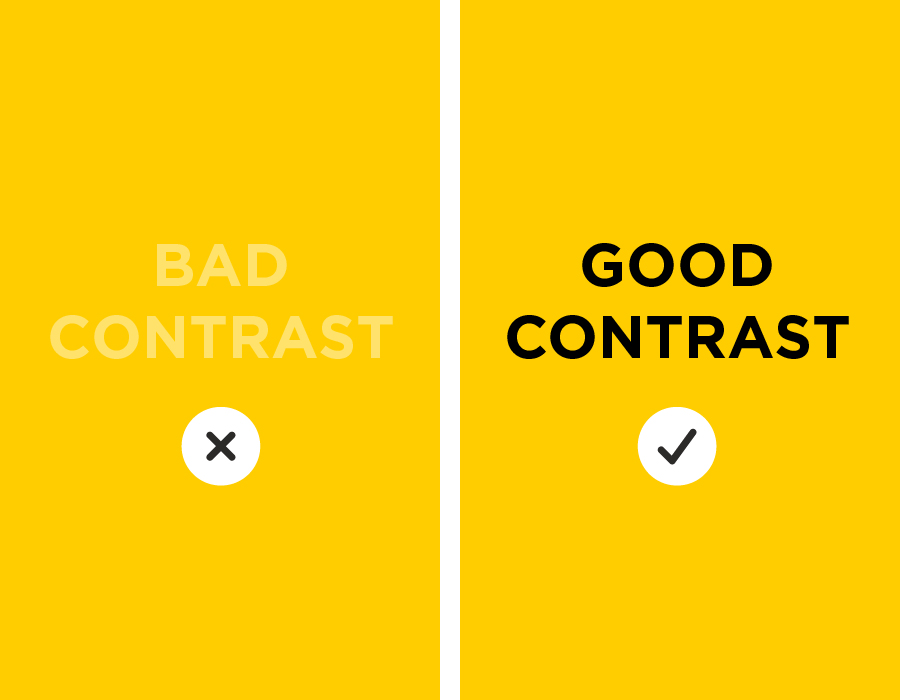
An example of good and bad color contrast

Color and Contrast

Text must have sufficient contrast against its background. A contrast ratio of 4.5:1 or higher is considered acceptable for most text. Use the Color Contrast Checker to check whether your text and background colors have enough contrast.

Do not use color alone to convey information or emphasis. Include additional visual cues or labels to convey the information.

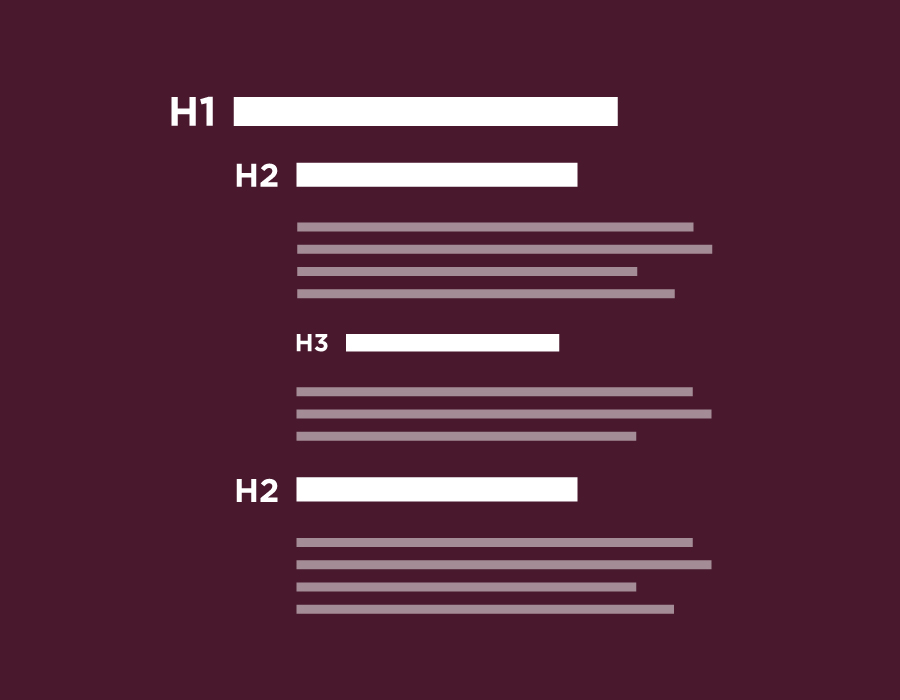
An example of three levels of headings: Heading 1, Heading 2, and Heading 3

Headings

Use properly formatted headings to structure your digital content. Headings typically start with Heading 1 (also sometimes called H1) for the top-level title, followed by Heading 2 (H2) for the next level down, followed by Heading 3 (H3) for the level below that, etc.

Use the same heading level for headings of equal importance.

For example: The main title of your document uses Heading 1. Each main content block in your document is labeled with a Heading 2. Sub-sections within those content blocks are labeled with Heading 3.

Never skip heading levels. For example, don’t jump from Heading 1 to Heading 3.

Headings should be used to represent the structure of the information in the webpage or document. Do not use headings for purely aesthetic reasons.

An image with a speech bubble to represent alternative text

Images

Images must have a meaningful text alternative (also known as “alt text”). 

Good alt text should concisely describe all important information from the original image. Consider the image’s context. Why was it included on this webpage or document? What information is it presenting? What is its significance?

Do not include text like “image of ...” or “picture of ...”

Never use generic or meaningless alt text like “Image 1.”

Purely decorative images that convey no information may have empty alt text or be marked as decorative. If you are in doubt about whether an image qualifies as purely decorative, err on the side of including alt text.

Avoid images of text. Written words should be rendered as text, not images. Logos are an exception to this rule.

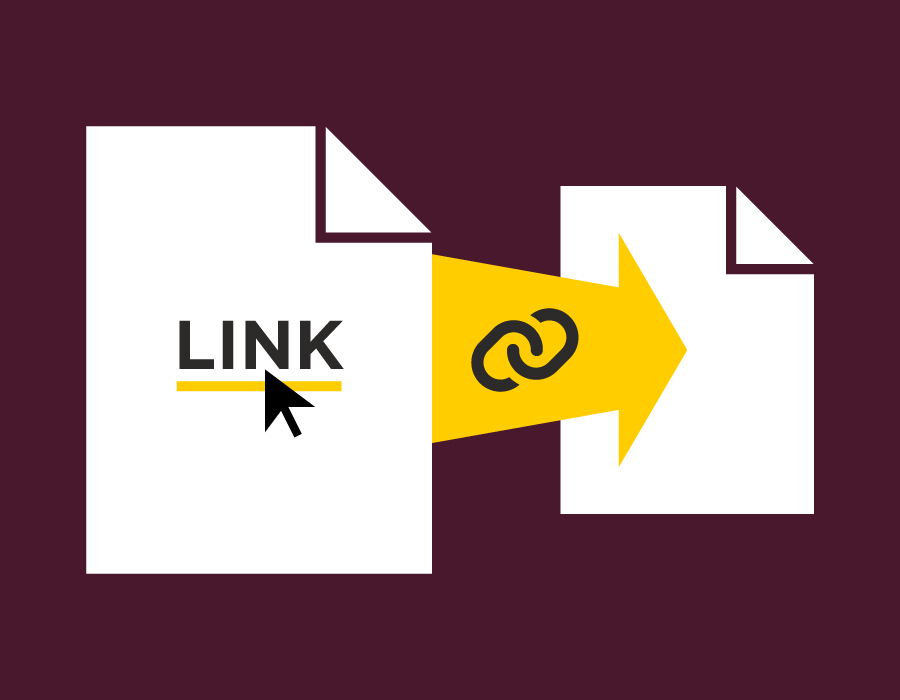
A link pointing from one webpage to another

Links

Write descriptive link text that clearly indicates the destination.

The following are examples of good link text that clearly indicates the destination: Learn more about digital accessibility. Start creating accessible content.

Avoid generic or vague link text such as “read more” or “click here.”

The following are examples of bad link text because the link text is generic and does not clearly indicate the destination: Learn more about digital accessibility. Click here.

Use unique link text. If two links go to two different pages, their link text should be different from one another.

A simple table with row and column headers

Tables

Ensure that tables are properly configured with column and row headers.

Assign the correct scope (whether the header applies to the row or the column) to all table headers.

Only use tables to structure data. Never use tables for aesthetic or layout reasons.

Avoid complex tables with features such as merged cells.

A video with icons for a transcript, captions, and audio

Video and Audio

Provide captions for video content

Provide a transcript for audio content

Review machine-generated captions to ensure that they are accurate

Provide a verbal description of all visual information (such as graphs or charts)