Getting Started
Set it up with NFC
NFC stands for Near Field Communication, a short-range wireless technology that allows devices to exchange data when within a short distance of one another.
For iPhones: 2019+ iPhones have NFC enabled by default. Just tap the top rear of your phone to the card for a second and a notification will pop up to open the setup page.
For Android: Most Android phones have NFC but not all have it enabled by default. Slide your notification shade down and toggle NFC in your quick settings to turn it on. Then tap the top (or maybe center) rear of your device to the card for a second to open the setup page.
Set it up via the QR code
For iPhones: Open the camera app and aim at the QR code on the rear of the card to open the setup page.
For Android: Open google lens by opening the google app and pressing the camera icon. Then aim at the QR code on the rear of the card to open the setup page.
mysitch.app
Either of the above methods will open mysitch.app in pairing mode. Sign up or sign in to link your Sitch Card to your own personal account. You can then start creating Sitches within the app. Sitches are specialized web pages that you typically invoke during inperson interactions via your Sitch Card. Want to share your contact info? Set a Profile Sitch as active and have the other person tap your card. Want to send them to a website? Make a Redirect Sitch and do the same thing. There are Sitches for pretty much everything you could think of, and because they’re web pages, they can also be shared online as links. You can even make yourself a mini website out of nothing but Sitches by combining them with a Site Sitch. mysitch.app is also where you can review form submissions, payments made to you, bookings etc. These will be under the “Data” tab in the menu.
How to install mysitch.app
mysitch.app is an installable web app, which means you can install it on your phone or PC like apps you get from the App Store, Play store, or Microsoft store. To do this, navigate to the “Install App” page.
NFC Tips
Enabling NFC
The phone will need to be turned on and have NFC enabled to read an NFC tag. Only 2019+ iPhones can passively read NFC tags but they all have NFC enabled by default. The vast majority of Android phones can read NFC as well and but not all have it enabled by default. NFC can easily be enabled on Android by dragging down on the notification bar and enabling it in the Quick Settings Menu. Alternatively, search for "NFC" in your phone's settings.
Additionally Android phones usually have to be unlocked to read from NFC. iPhones can read NFC tags from the lock screen.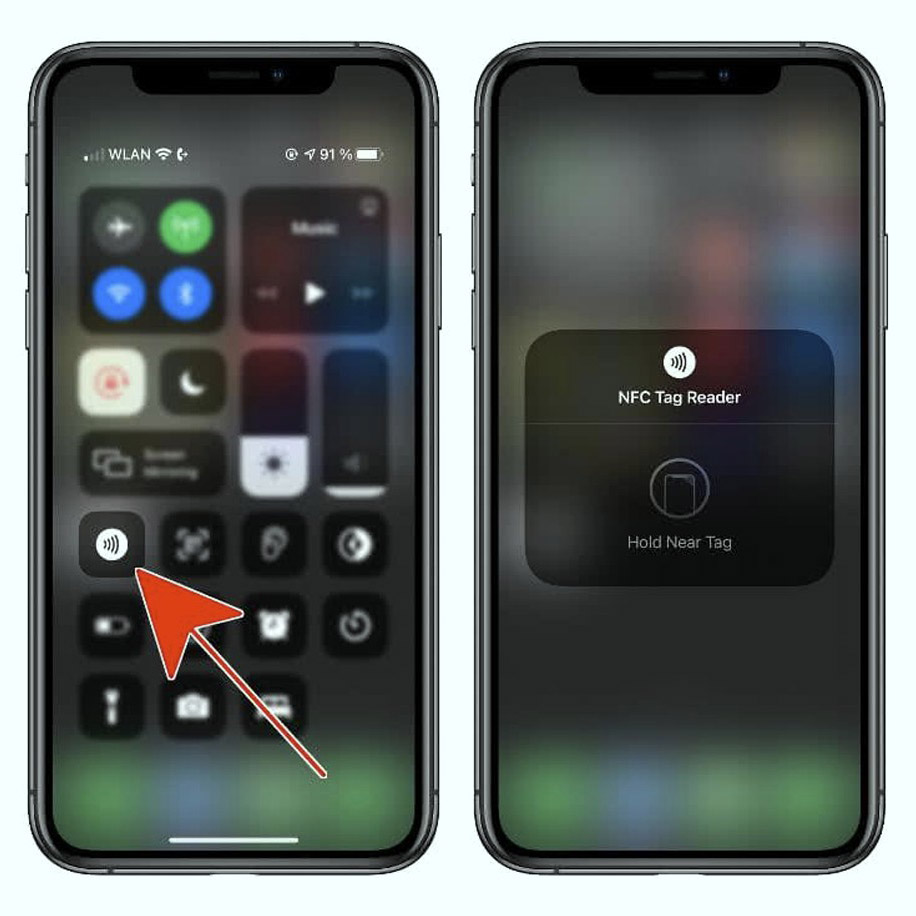
Tapping
When tapping bring your card within 1-2cm of a phones NFC reader and wait for about a second. Try adjusting the position if the read doesn’t work after a second.
NFC tapping on iPhone 7, 8 and X
Older iPhones can use NFC tapping as well, but they have to press the NFC button in the control center as seen in the image.
The QR code fallback
NFC tapping should work most of the time, but if it ever doesn’t, you can fallback to the QR code on the rear of the card to share your Stiches. It’s not quite as seamless as NFC but the general population is very well trained on scanning QR codes and every smart phone, no matter how old, is capable of doing so.
Useful Links
Our Website
Watch the Video
Create and Manage Your Sitches
The Wear OS app (Google)
The WatchOS app (Apple)
If you have any questions, feature suggestions, or wish to use a different company that will need branding approval before purchasing, please reach out to: Hope McGovern, assistant director, Marketing and Communications, Office of Communications and Public Affairs.



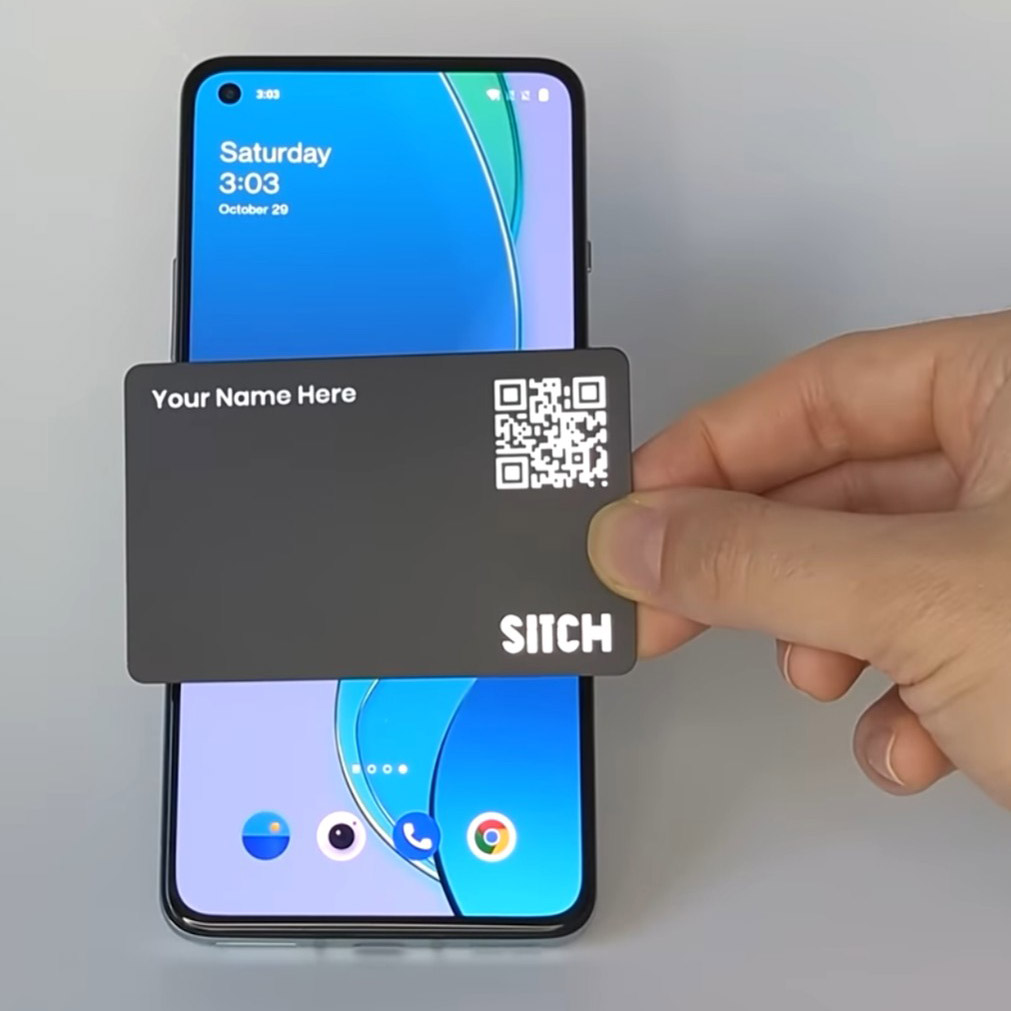
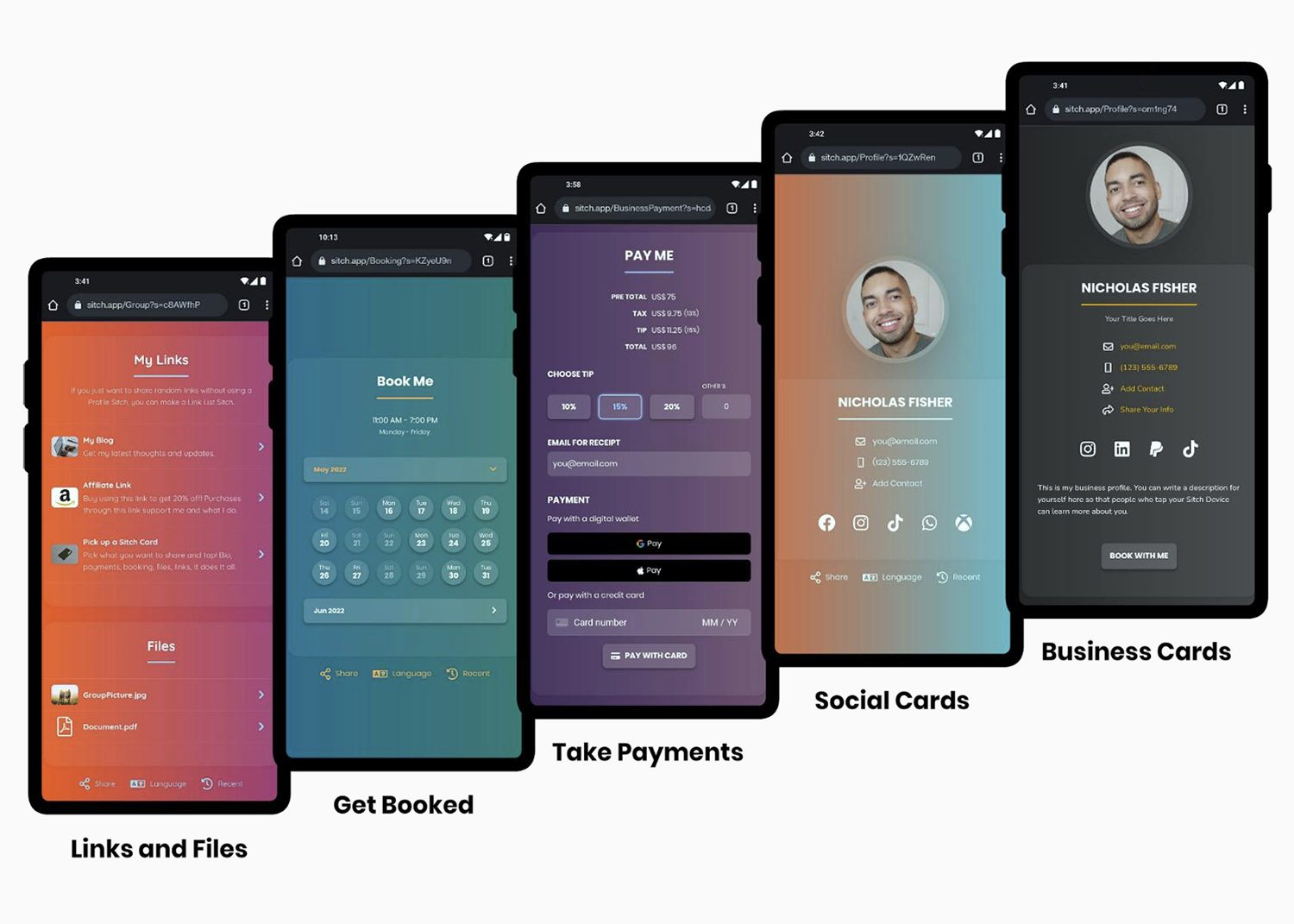 A Sitch Card can be tapped (NFC) or scanned (QR code) with phones to share business/social cards, forms, files, links, and much more. Best of all, you can change what your card does on the fly via the installable web app at